Chain a Few Steps.
Automate the Boring Part.
The tasks you repeat every week are just a handful of steps in a row. Zeshort lets you stack those steps — text processing, variables, HTTP requests, file I/O, AI calls — into a shortcut you name once and reuse forever. Run it from the app, call it from your shell, or hand it to your AI assistant over MCP. Every shortcut is a plain YAML file that lives on your own machine.
Automation shouldn't
be locked to one platform.
Great shortcut builders exist — but they're tied to one vendor's ecosystem, and their automations live in opaque formats you can't read, diff, or script. Zeshort's answer: the same snap-together experience, on your own machine, over files you actually own.
Plain YAML, not a binary blob
Every shortcut is a readable .zs file. Diff it in Git, edit it in Vim, generate it from a script — it's just text, and only name and steps are required.
Folders are real folders
The directory a shortcut lives in is its category. Move the file, and it changes folder — no hidden database to keep in sync with what's on disk.
A real headless engine
The execution engine lives in Rust and runs with or without the UI. The app, the CLI, and the MCP server all drive the exact same engine — no second implementation to drift.
MCP-ready for your LLM
Zeshort speaks the Model Context Protocol natively, so your AI assistant can list, inspect, create, and execute your shortcuts directly — with write access off unless you turn it on.
See it in Action
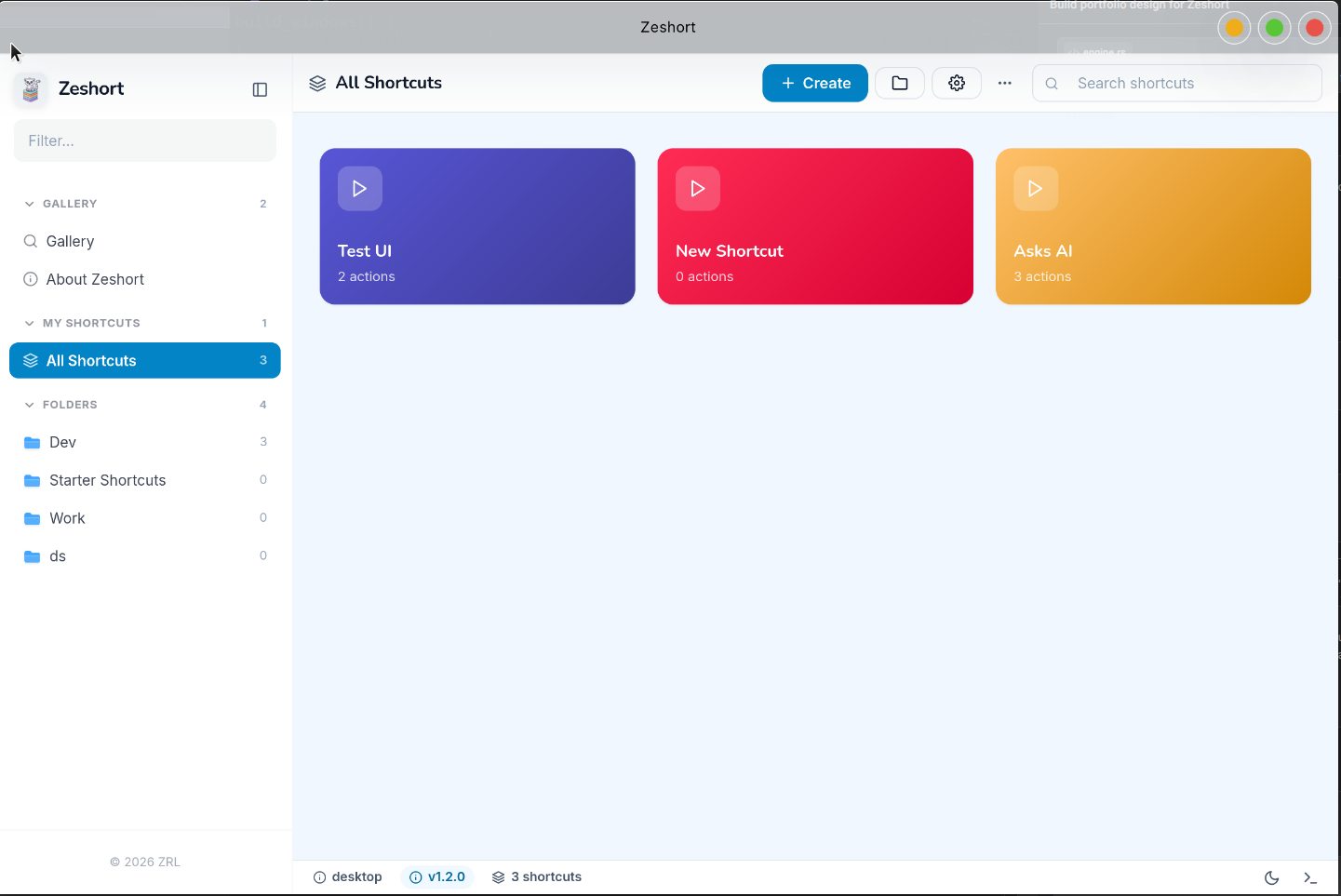
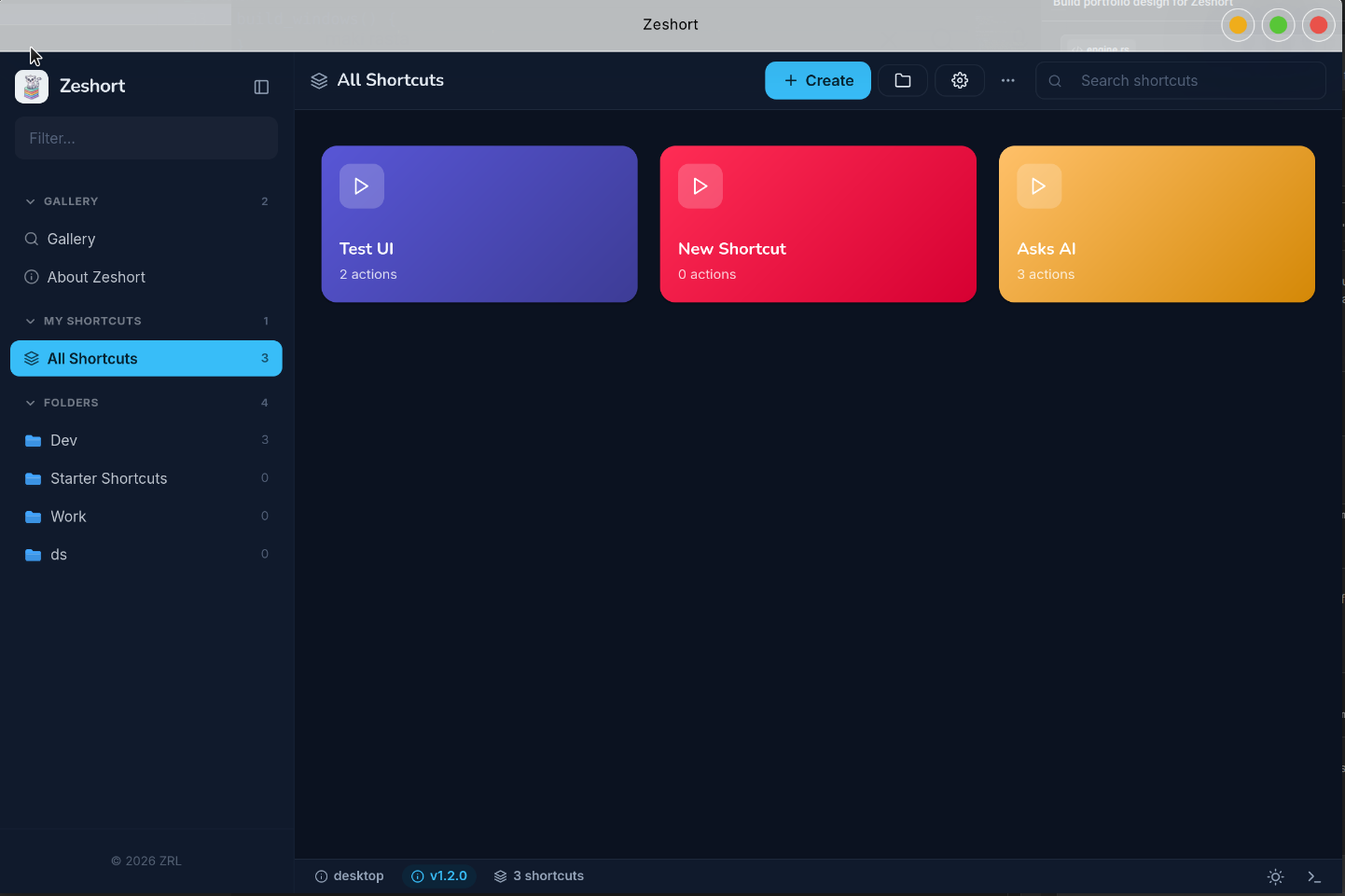
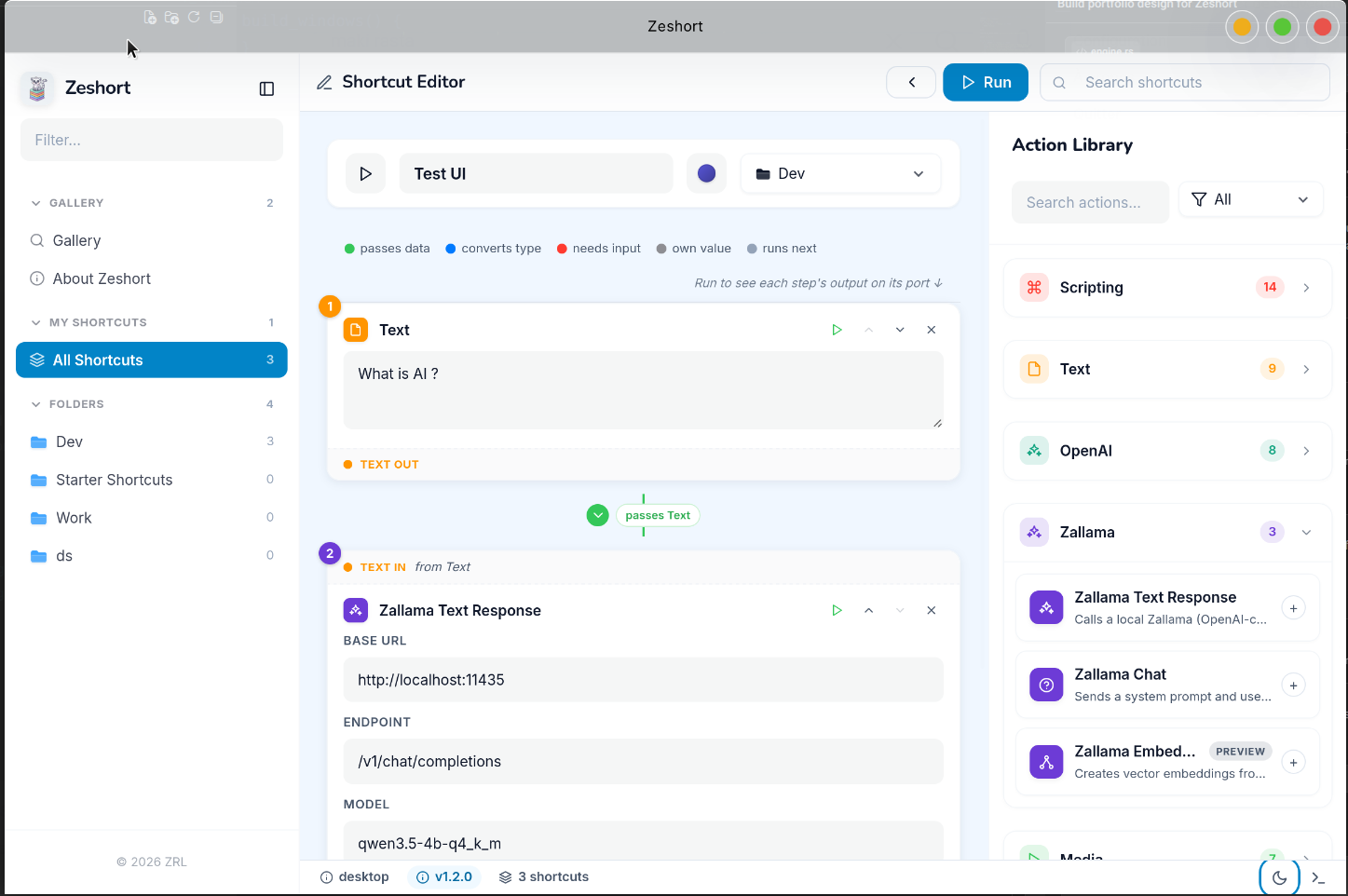
The shortcut gallery in light and dark mode, and the step editor with its action library.
Everything You'll Love About Zeshort
Snap steps together, run them anywhere.
62 Actions
A catalogue of 62 step types across Scripting, Text, OpenAI, Zallama, Media, Apps, Files, and Utilities. Pick a step, fill in its value, and chain it to the next one.
Steps That Talk
The editor draws the data flow between steps — labelled ports show what each one passes along, converts, or needs as input, so a broken chain is visible before you run it. Named variables thread through too: set one, reference it later as {name}.
Web Requests
Real HTTP GET and POST from inside a shortcut. Hit an API, grab the response, pipe it into the next step — no glue script required.
OpenAI Actions
Call the OpenAI Responses API straight from a step — prompt, model, and endpoint are all configurable, with {input} pulling in the previous output.
Secure Variables
API keys live in Settings → Secure Variables as named values like OPENAI_API_KEY. Shortcuts reference the name — secrets stay out of the vault and out of exports.
Shortcuts in Shortcuts
The run-shortcut action calls another saved shortcut as a step — recursion-guarded — so you can factor common sequences out once and reuse them everywhere.
File I/O
Save output to a file, list a folder's contents, create directories. Your automations can reach the filesystem directly instead of stopping at the app's edge.
Edit Anywhere
The app reloads from disk on every read, so the GUI, the MCP server, and your text editor can all work on the same vault without stepping on each other.
Native Performance
Built on Tauri v2 with a Rust backend — Zeshort opens instantly and stays out of your machine's way, unlike an Electron app shipping its own browser.
Scripting
Variables, conditions, repeats, waits, menus
Text
Combine, replace, split, change case, trim
OpenAI
Responses, vision, TTS, transcribe, embeddings
Zallama
Local model actions from the Ze family
Media
Images, audio, and PDF handling
Apps
Web requests, open URL, clipboard, notifications
Files
Save file, list folder, create folder
Utilities
Run shortcut, calculate, device details
Snap the steps together,
skip the boilerplate.
Each action does one small thing well: Set Variable stores a value, Get Contents of URL fetches a page, Replace Text rewrites the previous output, Run Shortcut calls another automation. Chain them, and the output of one becomes the input of the next.
33 of the 62 actions run fully headlessly today — from the CLI or an AI agent, with no window open. The rest either need a UI surface (alerts, clipboard, notifications) or a provider that isn't wired up yet, and they report a clean unsupported result instead of silently pretending to succeed.
web-request, trim the response, and show it — a useful shortcut in three steps and about six lines of YAML.
Your Shortcuts,
In Plain Text.
The vault is a plain directory: one .zs file per shortcut, one real directory per folder. No database, no sync service, no proprietary container. It lives at ~/.config/zeshort/ by default, and you can point it anywhere in settings.
- 🌟 Version-control it — a shortcut change is a readable diff.
- 🌟 Move a file between folders and its category follows.
-
🌟
Minimal by design — only
nameandstepsare required.
~/.config/zeshort/
~/.config/zeshort/
├── Starter Shortcuts/
│   └── morning-routine.zs
└── Utilities/
    └── fetch-weather.zs
Utilities/fetch-weather.zs
name: Fetch Weather
icon: cloud          # optional (default: command)
color: blue          # optional (default: blue)
description: Grab a one-line forecast   # optional
steps:
  - type: web-request
    value: https://wttr.in?format=3
    parameter: GET
  - type: show-result
The category isn't stored in the file — the containing directory is the category. Step ids and titles are filled in automatically from the action library, so you only write what matters.
Let Your Agent
Build and Run Automations.
Zeshort speaks the Model Context Protocol (MCP) — the open standard that lets AI assistants like Claude connect directly to the apps you already use. Start the server over stdio, and your assistant works with your vault the same way the app does.
Once connected over MCP, your assistant can:
- 🌟 List and inspect your shortcuts, folders, and available actions.
-
🌟
Create new shortcuts by writing
.zsfiles into your vault. - 🌟 Execute them headlessly and read back a per-step result.
You stay in control — the server is read-only unless you start it with --read-write.
list_shortcuts
List all shortcuts (id, name, folder, step count)
get_shortcut
Get a shortcut's full definition, including steps
list_folders
List the vault's folders (real directories)
list_actions
List action types, flagged with headless support
create_shortcut
Create a shortcut (writes a .zs file into its folder)
delete_shortcut
Delete a shortcut by id
execute_shortcut
Run a shortcut headlessly, returns per-step results
How to configure MCP
-
1
Start Zeshort's built-in MCP server from a terminal. Use
--read-writeonly if you want your assistant to be able to create, delete, or execute shortcuts, not just read them.
# Read-only (list & inspect shortcuts)
./build/zeshort mcp

# Read-write (also create, delete & execute)
./build/zeshort mcp --read-write-
2
Point your AI assistant at it. For Claude Desktop and most MCP clients, add this to your
mcp_config.json(e.g.~/.config/Claude/claude_desktop_config.json):
{
  "mcpServers": {
    "zeshort": {
      "command": "/path/to/zeshort",
      "args": ["mcp", "--read-write"]
    }
  }
}
Restart your assistant after saving the config. It will then have access to list_shortcuts, get_shortcut, list_folders, list_actions, and — in read-write mode — create_shortcut / delete_shortcut / execute_shortcut.

Download Zeshort ⭐️
Get Zeshort for free. No account, no sign-up, no subscription — just download, install, and start automating. Your vault stays on your machine.